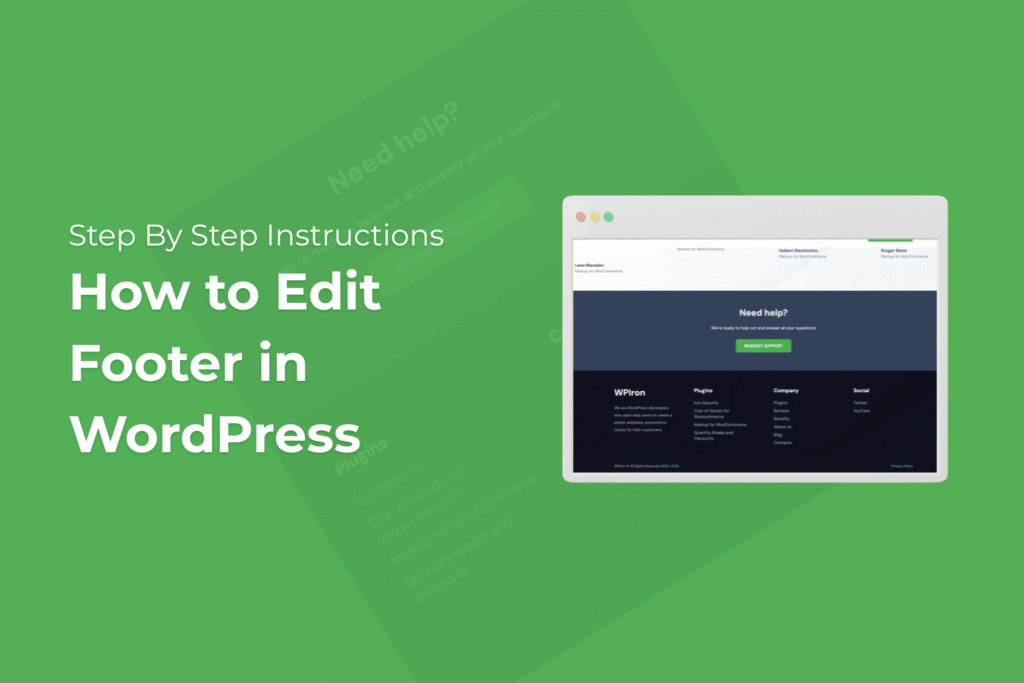
The footer section is the important part of every website that does play a significant role in many things. It is important for user navigation, as it helps the user to navigate to other important pages of your WordPress website, provides information that improves your brand credibility, and also provides your site with better functiinctionality.
So, for all the users who wish to edit your WordPress footer, this article will be a perfect guide to help you understand different methods to customize your site footer.
These methods include beginner-friendly steps to more advanced techniques for tech-savvy users. We do hope that by the end of this guide, you will have the best knowledge about the footer and make changes to its designs and content without getting into any problem.
Markup for WooCommerce
The easiest way to markup your products in WooCommerce.
The footer section is the important part of every website that does play a significant role in many things. It is important for user navigation, as it helps the user to navigate to other important pages of your WordPress website, provides information that improves your brand credibility, and also provides your site with better functiinctionality.
So, for all the users who wish to edit your WordPress footer, this article will be a perfect guide to help you understand different methods to customize your site footer.
These methods include beginner-friendly steps to more advanced techniques for tech-savvy users. We do hope that by the end of this guide, you will have the best knowledge about the footer and make changes to its designs and content without getting into any problem.
Understanding the WordPress Footer
Before we start with the methods, it’s mandatory to understand the core concepts of the WordPress footer. The footer basically appears at the bottom of your page in your WordPress site. This contains different elements like:
- Copyright information and footer text
- Navigation links and footer menu
- Contact details and social media icons
- Newsletter subscription forms
- Footer widget area content
- Disclaimer and privacy policy links
If you are using a well-known WordPress theme, they come with footer customization features, but the level of control of the customization does depend on the subscription level of your theme. Most of the block-based themes offer flexible customization options using the site editor, while the classic themes use the WordPress customizer or widgets.
Method 1: Edit the Footer Using the Site Editor
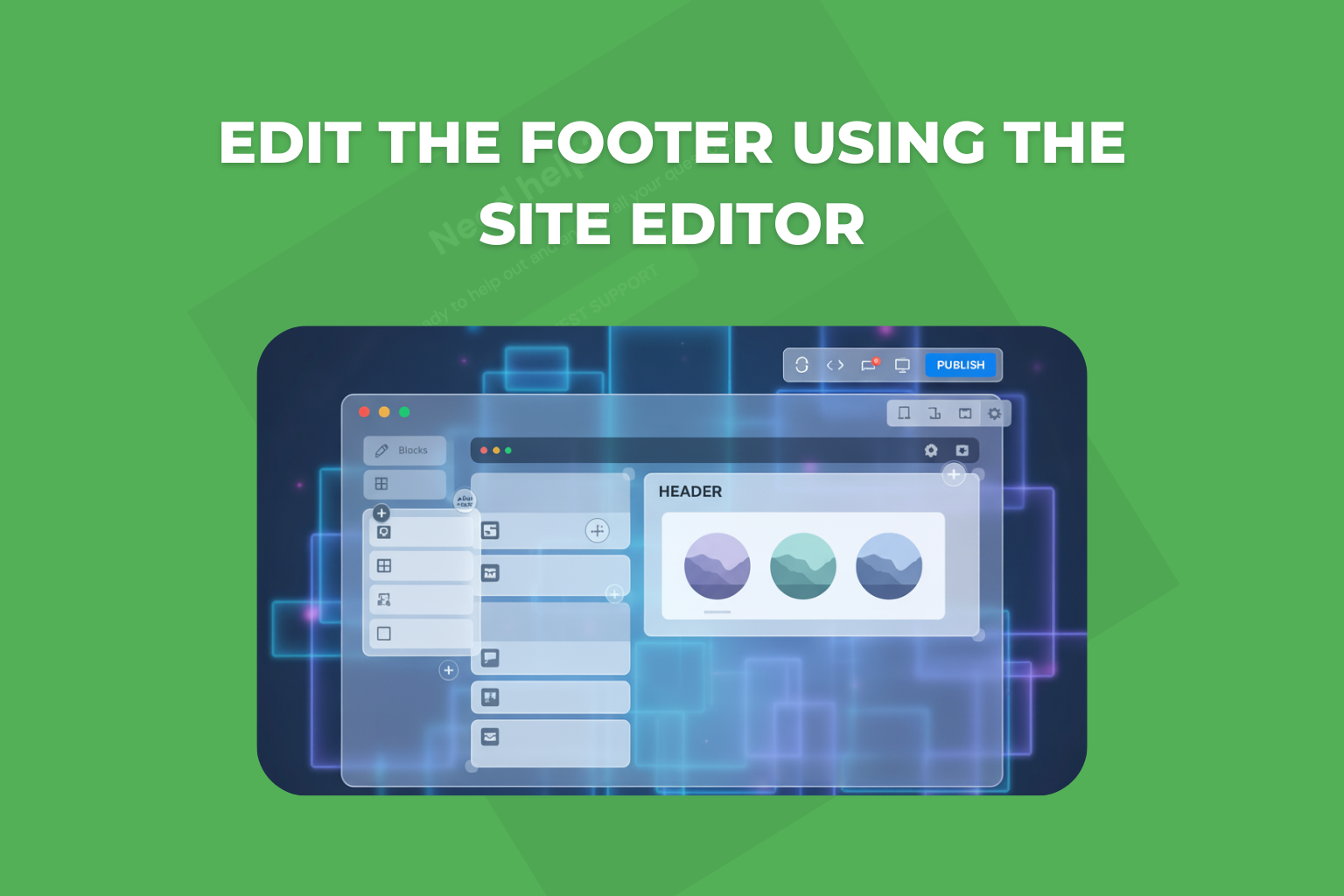
For the website users who use block-based themes, you can use the site editor, as it is the easy and powerful way to modify your WordPress site footer.
Follow these instructions
Step 1: Access your website’s site editor
- Log in to your WordPress Dashboard.
- Navigate to Appearance » Editor from the menu at the left side.
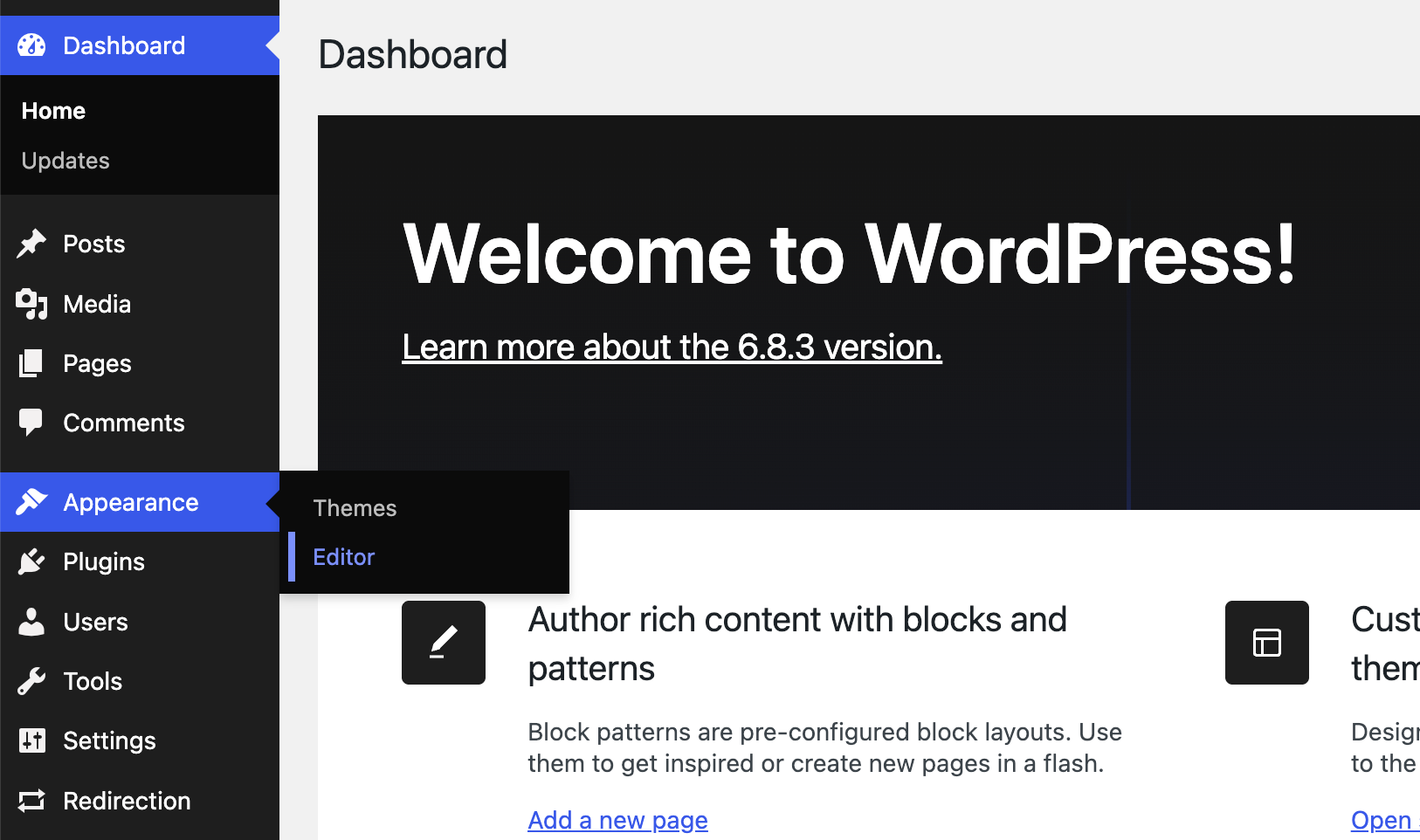
- Here, the interface of your site editor will open. This interface includes the entire site’s appearance.
Step 2: Select Your Footer Template
- At your site editor, search for the template options.
- Now, click on “Patterns” or “Templates” from the top right corner.
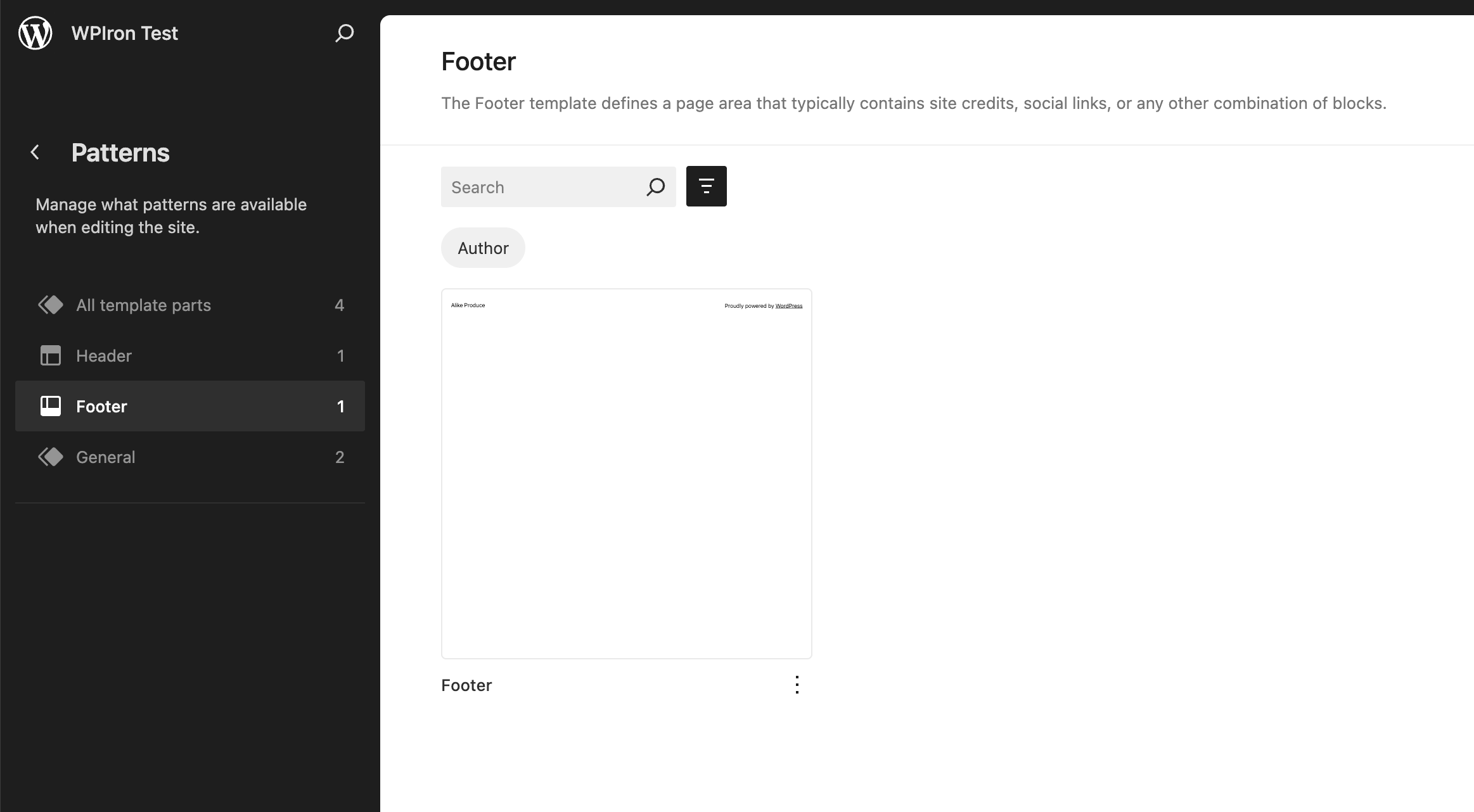
- Here, find and select the footer template.
Step 3: Modify Footer Content
- Here, you should edit your footer; you can directly click on any elements.
- Now, add new blocks by clicking on the “+” icon.
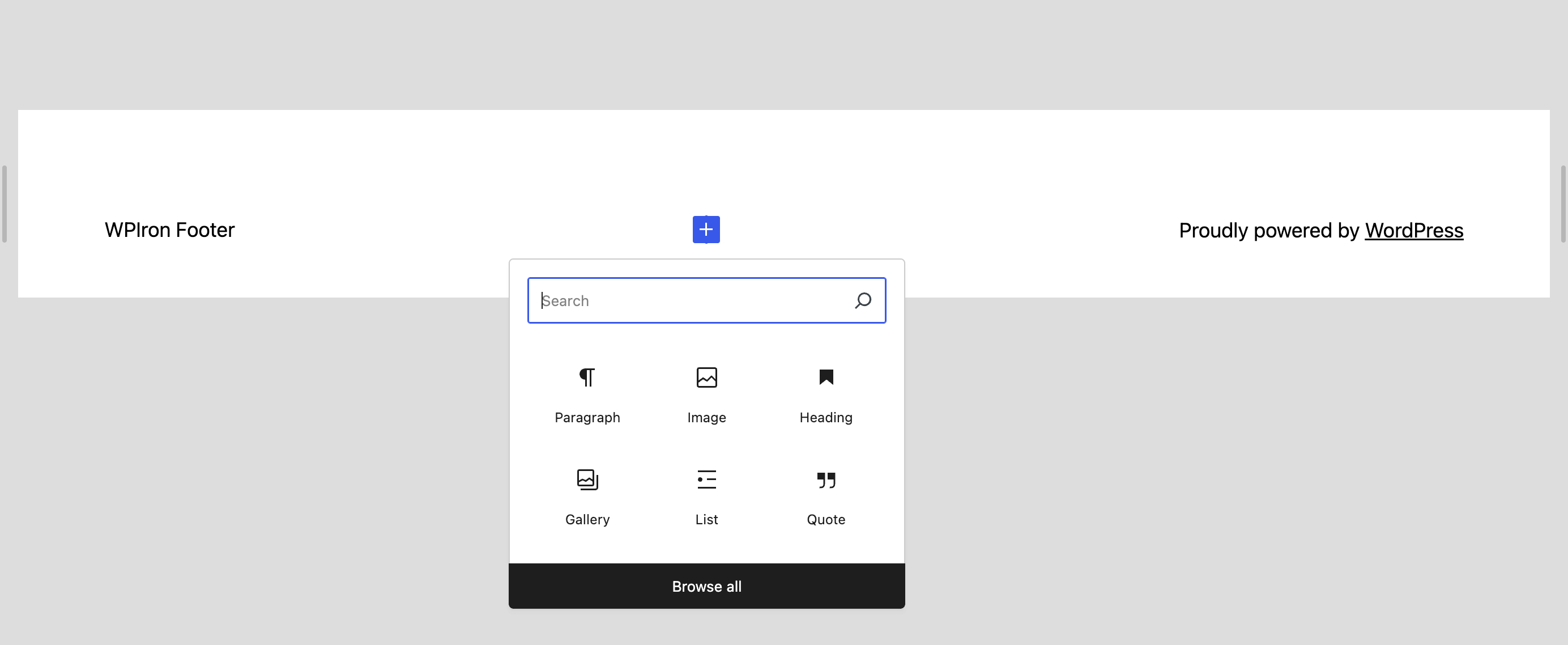
- You should rearrange your existing blocks by dragging and dropping the elements.
- You can make it look better. Customize the colors, fonts, and spacing using the settings panel at the right.
Step 4: Save Your Changes
- If you have finished making the desired changes, just click Save button from the top right corner.
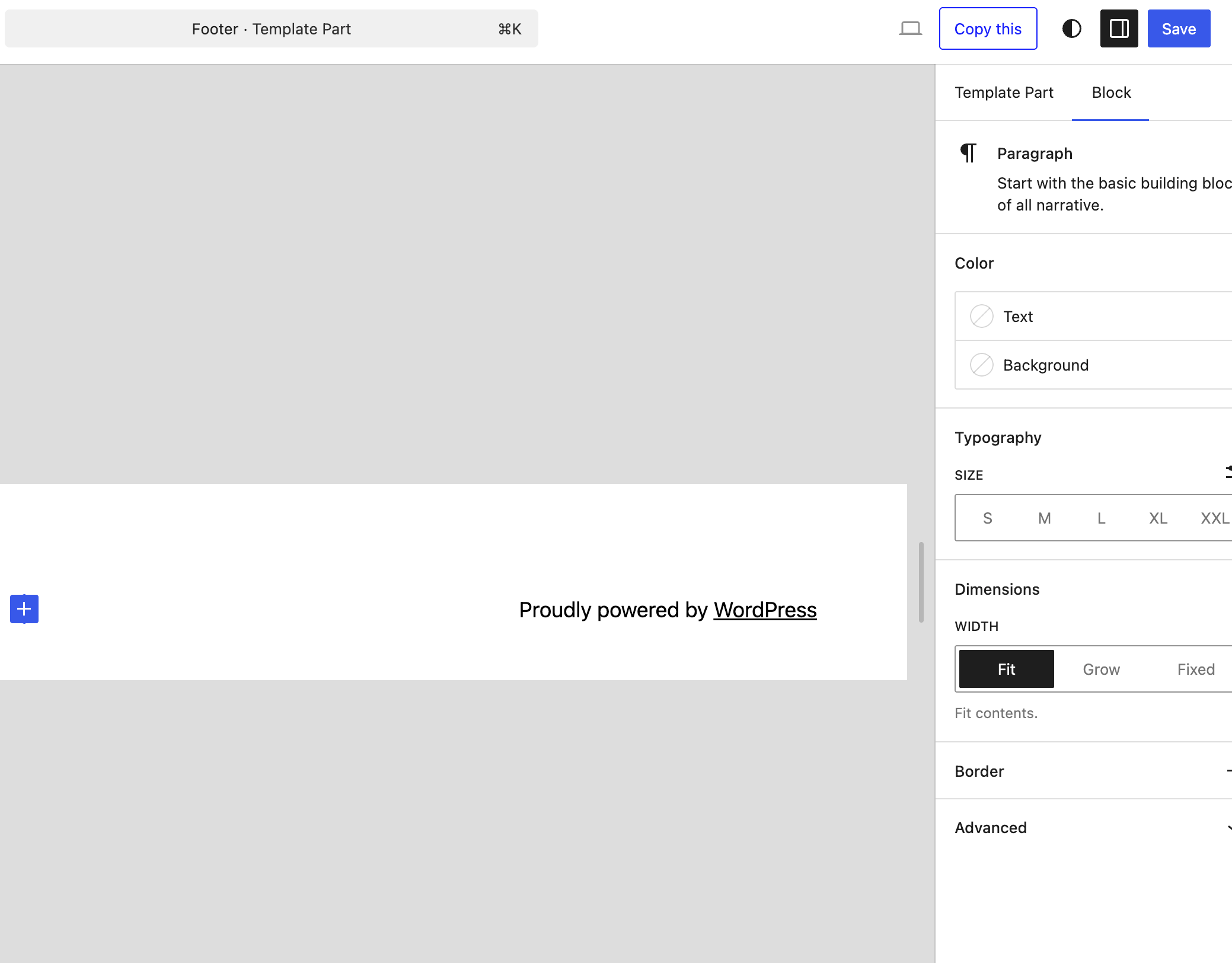
- Once you click save button, your site footer updates will appear on all the pages within your WordPress site.
The website editor allows you to edit your individual blocks. This makes it simple to create a complex site footer layout, and all this without using any code.
Method 2: Edit the Footer Using WordPress Theme Customizer
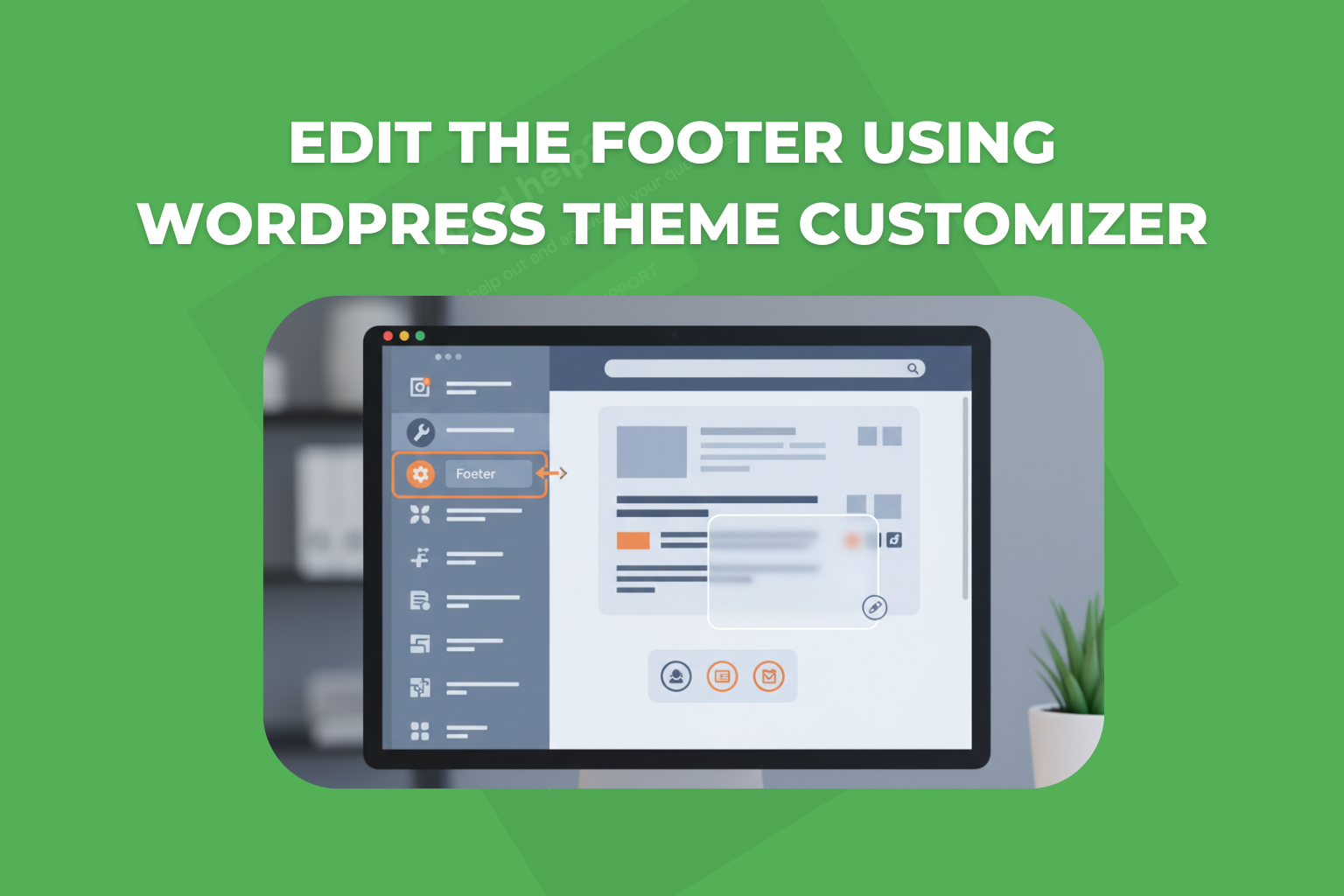
For the user who uses the WordPress Classic theme, you should utilize the theme customizer as your primary tool to make modifications for the footer.
Accessing the Customizer
- Log in to the WordPress Dashboard and navigate to Appearance » Customize.
- Here, this will open the WordPress theme customizer with the live preview of your website.
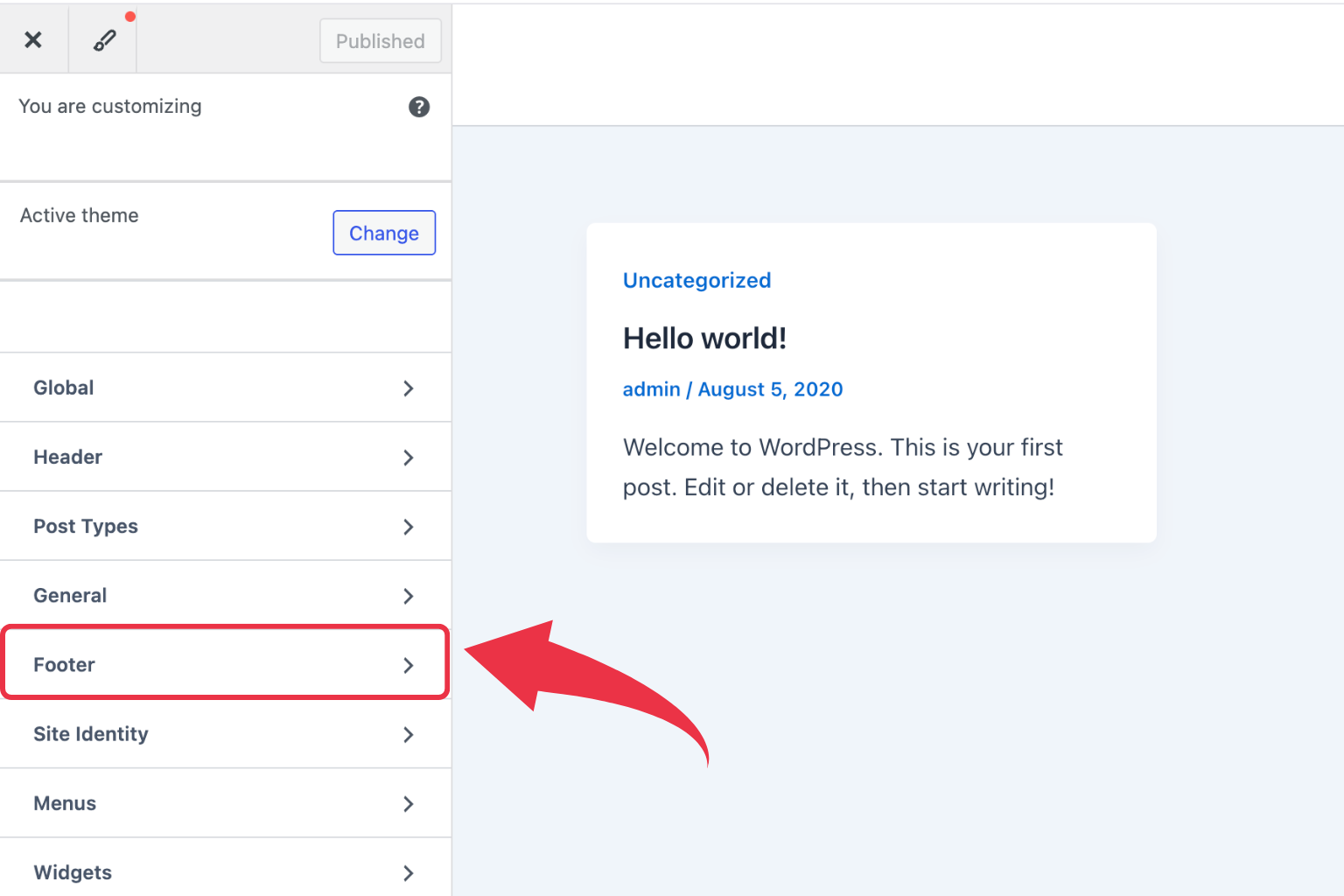
- Here you should look for footer options in the left menu.
Note: There is a specific option name; the exact naming varies by theme.
Customizing Through the Customizer
There are many themes that feature dedicated sections for your footer customizer, and that too is inside your WordPress. Customizer:
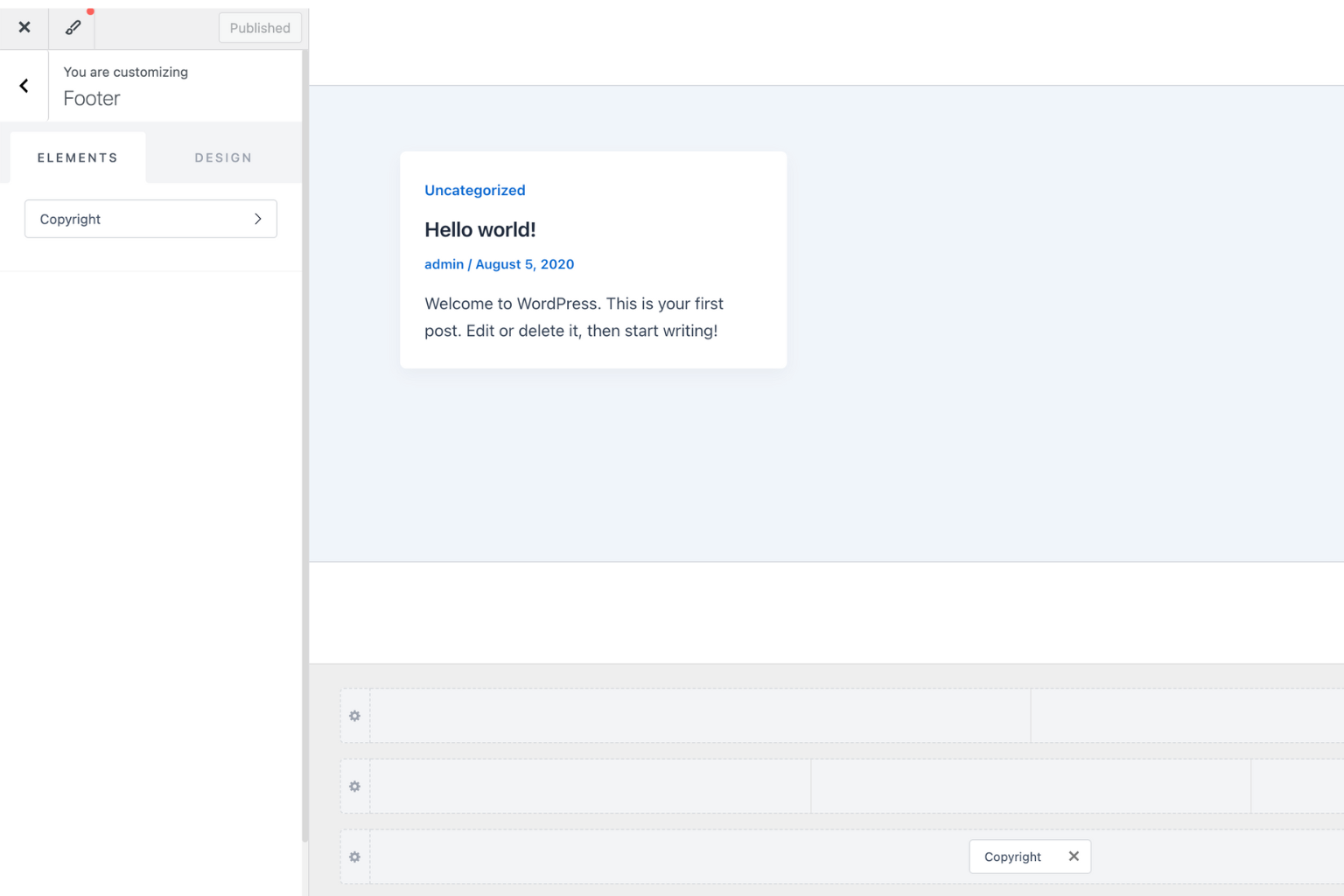
- Footer Settings: Using these options controls the visibility of the footer bar, its background colors, and other different layout options.
- Footer Widgets: You can individually manage multiple footer widget areas.
- Footer Copyright: It’s essential to add your personalized copyright text and links. You should edit the footer right away.
Finally, after you finish making the changes, just click on the “Publish” or save button. This will save the changes. With WordPress Customizer’s real-time preview, you can see how your footer will look before you publish it.
Method 3: Using Footer Widget Areas
WordPress themes feature widget areas; these areas are the best way to add content inside your WordPress footer, and all that without writing a single line of code.
Follow these instructions
Managing Footer Widgets
- Let’s first navigate to Appearance » Widgets using your Dashboard.
- After that, scroll down and find footer widget areas. These footers are commonly named Footer-1, Footer-2, and so on.
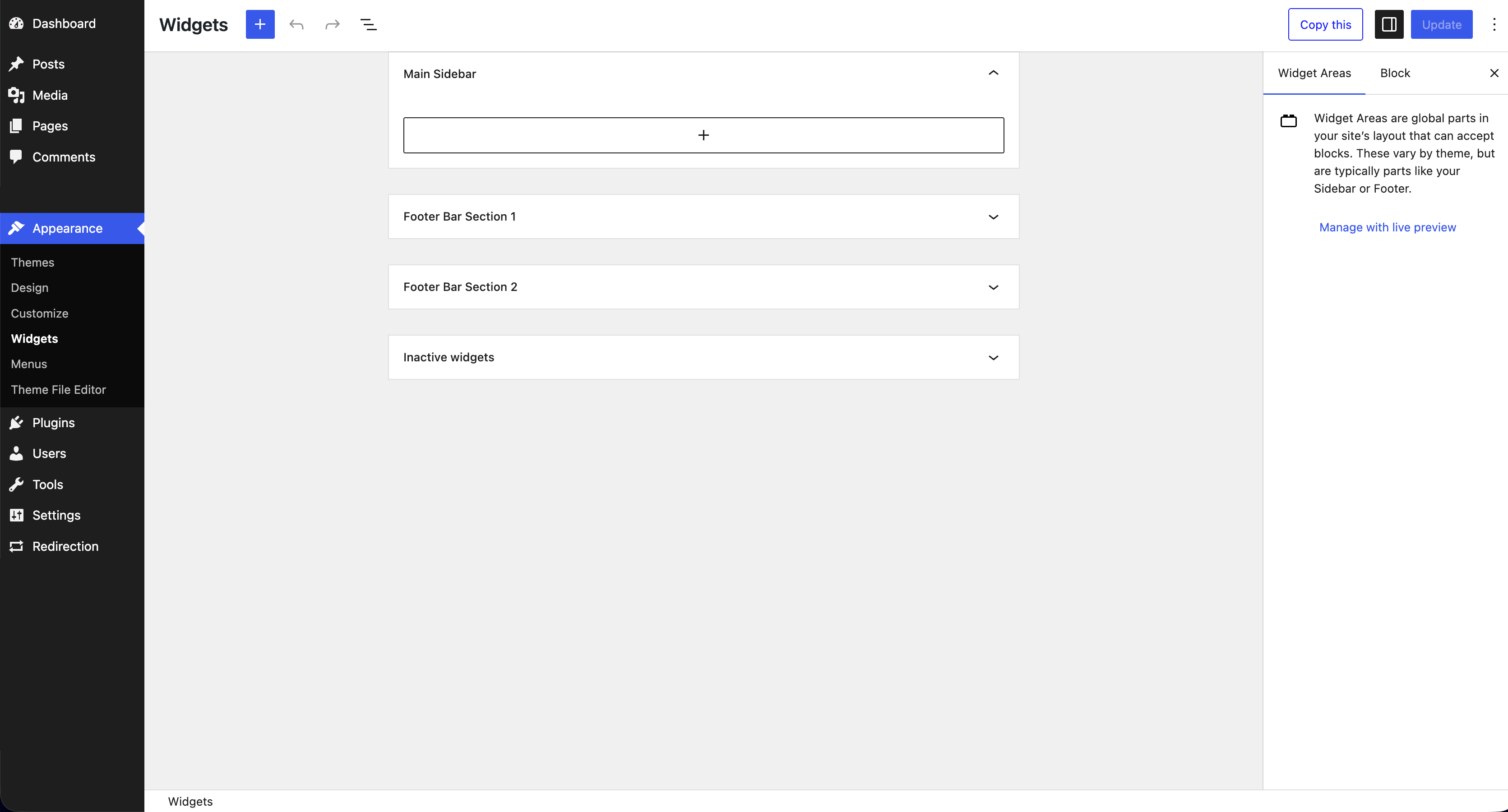
- Here, click on the widget area and expand it.
- Finally, add your widgets by simply pressing the “+” button or selecting from different options.
Popular Footer Widget Options
- Text Widget: You can add custom code, HTML, or just some text content.
- Navigation Menu: Here you can show your footer menu or footer links.
- Custom HTML: Using custom HTML, you can insert custom code for advanced functionality.
- Social Icons: You can add social media icons with links that help to showcase your social media handles.
There are different themes that provide support for multiple widget areas for footer, which allows you to create more than just one column and footer layout. To do this, you can simply add widgets to areas and choose to effectively organize your website content.
Method 4: Footer Builder Plugins
If you are among the users who wish to use advanced design methods, and that too without coding, there are many footer builder plugins that can help you improve the functionality of your website.
Popular Footer Builder Options
Here are some useful plugins that can provide advanced footer features. These plugins will let you easily edit the footer in WordPress.
- Elementor: This plugin is a powerful website and this builder that provides a wide range of design options.
- Beaver Builder: Beaver Builder can be the next best builder plugin, as it provides footer templates. This helps to see your edits with live editing options.
- HappyAddons: If you are using any page builders, you can use HappyAddons to add footer functionality to your website.
Using a Footer Builder Plugin
Here are some easy steps that can work for all the above plugins.
- Install and activate the footer builder plugin that suits your needs.
- Now, create a new footer template using the plugin interface.
- After this, you should design your footer using the features of the drag-and-drop editor.
- You can assign your new template and add it to your website or any specific pages.
- Finally save to plugin your edited footer design.
These builder plugins for footer are useful, and more importantly, you need different footers on different pages of the website.
Method 5: Editing the Footer.php File
If you are a user with familiarity in website code, you can use codes and edit the footer.php file. This provides complete control over your footer structure.
⚠️ Warning: if you directly edit the theme files, it might break your site. This happens if you do things incorrectly. Before you decide to edit any code, you must create a backup first. the step. You can utilize a child theme to save your changes during any theme updates.
Accessing the Footer.php File
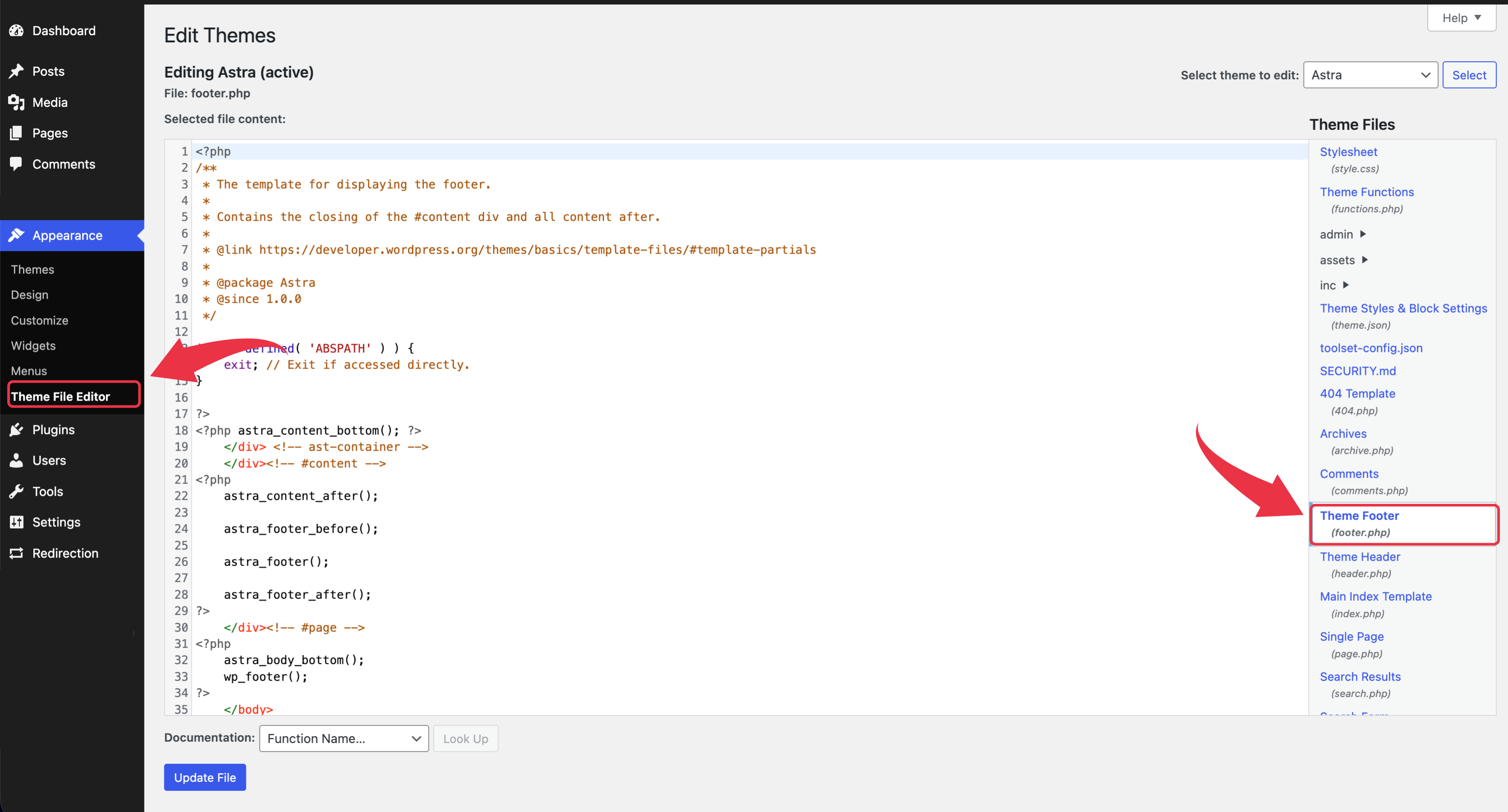
- Using your WordPress Dashboard, go to Appearance » Theme File Editor.
- Now, search for footer.php, which is in the theme files. You can find it on the right of the page.
- Finally click on footer.php. This opens the editor.
Modifying the Footer Code
This footer.php file is created using PHP and HTML code. This helps to create a footer. Here are the simple steps:
- You should modify the existing footer structure.
- Add custom code if you wish to have specific functionality.
- Here, replace static text with dynamic content.
- Finally, just add your tracking scripts or your custom code.
When you finish making the edits, click on the “Update File” button. This saves your changes on the website. It’s essential to check the site immediately, so check if nothing goes wrong once you update your theme files. .
Best Practices for Footer Design
If you look apart from the technical editing, it’s crucial to follow best practices for design of your footer. This guarantees the footer layout and helps in enhan
Essential Footer Elements
You should remember to include these important components in your footer area. These are listed below:
- Copyright notice and year
- A hyperlink to your essential pages and website links. These pages can be About, Contact, and Privacy Policy.
- Your contact information and social media links.
- A description of your business or website. This can also include the taglines.
- If you wish to reach a wider range of audience, add Newsletter signup form.
Mobile Responsiveness
Mobile devices are your major target device. So, as a website owner, always remember to test your site footer design. If you are using a reputable WordPress theme, it handles the responsive design without any problem. However, if you want additional styling, you can use custom codes.
Performance Considerations
For best performance of your website, you should remember to keep your footer lightweight and minimal.
- You can limit the number of widgets and blocks.
- It’s essential to optimize your images for your footer areas.
- Limit the use of custom code and prevent the slow-loading pages.
- Avoid using the image-based design because CSS styling are more efficient.
Advanced Footer Customization Techniques
If you are a user who wants technical implementations, here are some advanced techniques that can even offer flexible controls:
Conditional Footer Content
If you wish to show different footer content for different pages, you can utilize the conditional logic by making changes to the footer.php file or using plugins. This is helpful if you wish to show specific information on your blog posts or pages.
By implementing these methods, you can enhance user experience and ensure that the information presented is relevant to the content being viewed. Additionally, this customization can help in promoting targeted messages or calls to action effectively.
Custom Footer Widgets
Developers can set up custom widget areas just for footer sections. This gives clients a lot of ways to manage content without having to edit codes.
This flexibility allows for easy updates and changes to the website’s design and functionality. As a result, clients can create a more dynamic user experience tailored to their audience’s needs.
Schema Markup
You can include schema markup in your footer by adding a custom code. This will help search engines better understand your business, contact information, and social profiles.
Schema markup can boost your site’s visibility in search results, leading to more clicks. In addition, it lets you show rich snippets, which get more attention from users.
Conclusion
If you know how to edit the footer in WordPress, you can make many changes to your website that will make it look better and work better. You can use the site editor, the WordPress theme customizer, the widgets, the footer builder plugins, or you can edit the footer.php file directly. Each has its benefits.
Start with the method that fits your level of technical knowledge. For new users, the site editor or customizer are better options. More experienced users may prefer to work directly with the code. No matter which method you choose, you should always test changes carefully and keep copies of your site.
Now that you know what this article taught you, you can make your WordPress footer look professional, work well, and help your business reach its goals. Spend some time trying out various layouts and content types until you discover the best footer setup for your WordPress site.
We hope this article helped you learn how to change the footer in WordPress. If you found this guide helpful, you might want to look into other WordPress tutorials to improve the look and functionality of your site even more.
Markup for WooCommerce
The easiest way to markup your products in WooCommerce.
